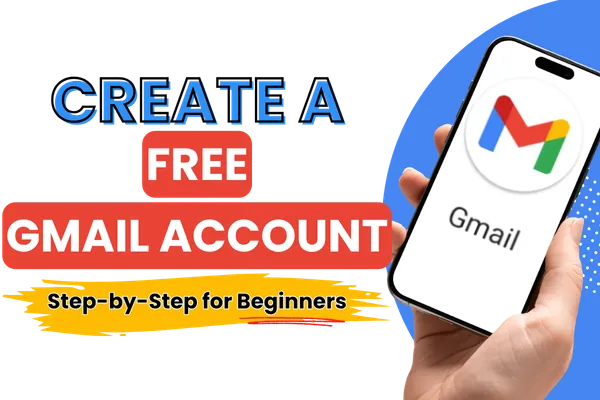
How to Create and Use a Free Gmail Account (Beginner's Step-by-Step Guide)
If you've been avoiding technology because it feels overwhelming, you're not alone.
One of the most common questions I hear is:
"How do I create an email account?"
The good news is that creating a Gmail account is much easier than most people expect—and once you have one, it opens the door to so many other free Google tools that can simplify your personal life and even help you grow a business.
🎥 Prefer to Watch Instead?
If you'd rather follow along step by step, I've recorded this entire tutorial for you on YouTube.
Watch the full video tutorial below, then continue reading for additional tips and resources.
Why Everyone Needs a Gmail Account
Think of your email address as your digital home address.
Almost everything you do online requires one.
You'll need an email address to:
Shop online
Register for websites
Join Zoom meetings
Receive important documents
Sign up for newsletters
Reset passwords
Connect with family and friends
Access free Google tools
A free Gmail account is one of the easiest and most useful places to begin.
Want to become more confident with technology?
I host a FREE live Let's Get Tech Smart training every Tuesday, where I teach one beginner-friendly tech skill in about 20 minutes. Join us and build your confidence one simple lesson at a time.
👉 Register for the next free training
Step 1: Create Your Free Gmail Account
Visit Gmail and choose Create Account.
You'll be asked for:
Your first and last name
Your preferred email address
A secure password
Your phone number for verification
A recovery email (recommended)
Take a few extra minutes to choose an email address you'll be happy using for years to come.
If you're creating an account for personal use, a simple variation of your name is usually the best choice.
Step 2: Get Comfortable with Your Inbox
Once your account is created, Gmail will open your inbox.
The main areas you'll use are:
Inbox – where new emails arrive
Compose – write a new email
Sent – emails you've already sent
Drafts – emails you've started but haven't sent
Spam – suspicious or unwanted messages
Trash – deleted emails
Don't worry about learning every feature today.
Start with the basics, and your confidence will grow naturally.
Step 3: Send Your First Email
Sending an email is simple.
Click Compose and fill in:
The recipient's email address
A subject line
Your message
Then click Send.
Congratulations—you've officially sent your first Gmail message!
Step 4: Reply to Emails
When someone responds, simply open the email and click Reply.
Your conversation stays together, making it easy to keep track of your messages.
As you become more comfortable, you'll learn additional features that help you stay organized.
Step 5: Attach Photos and Documents
Need to send a picture or PDF?
Click the paperclip icon while composing your email.
Choose the file from your computer, wait for it to upload, and send your message.
It's that easy.
Helpful Gmail Tips
As you continue using Gmail, here are a few simple habits that will save you time:
Use the search bar to quickly find old emails.
Check your Spam folder if you're expecting an email that never arrives.
Look in the Sent folder to confirm an email was successfully delivered.
Add a recovery phone number and recovery email so you never lose access to your account.
Small habits like these can make Gmail much less intimidating.
Your Gmail Account Unlocks Even More Free Google Tools
One of the biggest advantages of Gmail is that it gives you access to many other free Google services, including:
Google Drive
Google Docs
Google Sheets
Google Forms
Google Calendar
Google Meet
We'll be covering many of these tools in future TechSmart trainings, so once you have your Gmail account set up, you'll be ready to follow along.
Ready to Keep Learning?
Technology becomes much easier when you learn one skill at a time.
That's exactly why I created Let's Get Tech Smart—a free live training every Tuesday where we simplify everyday technology together.
Each week we cover one practical topic like Gmail, ChatGPT, Canva, Google Forms, and other tools that help you save time and build confidence.
I hope to see you at the next live training!