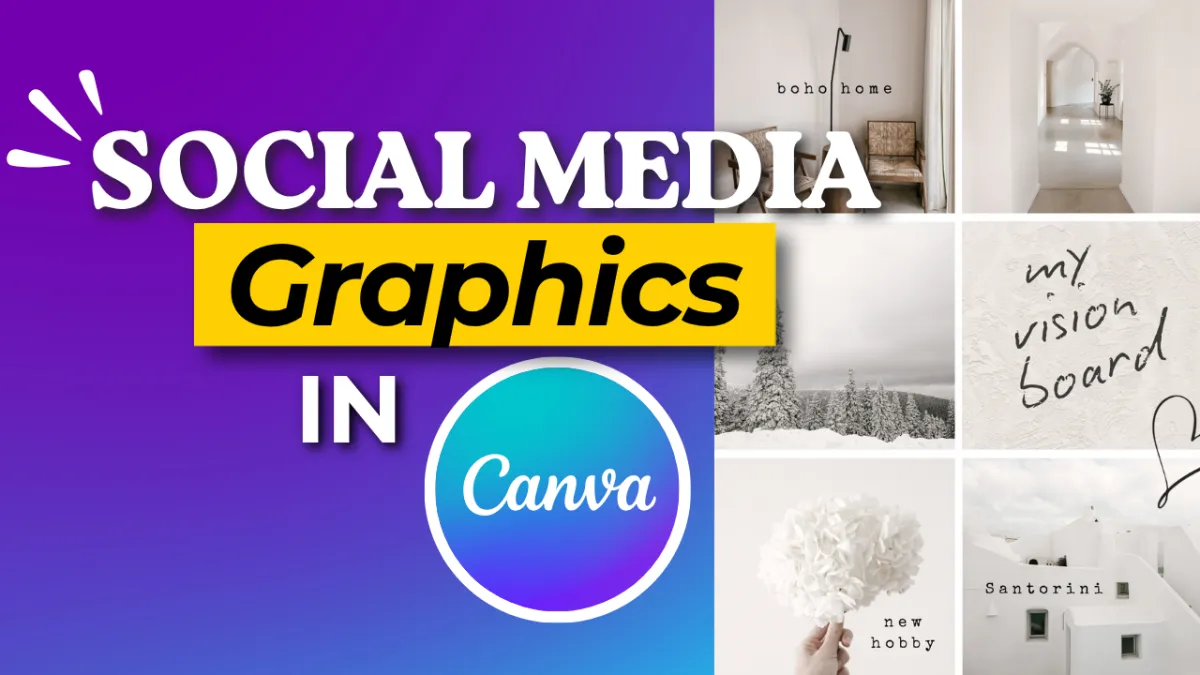
Canva Made Simple: How to Create Social Media Graphics with Confidence
If you've ever opened Canva and immediately felt overwhelmed, you're not alone.
Thousands of templates.
Hundreds of fonts.
Millions of design possibilities.
It's enough to make many entrepreneurs close the browser and tell themselves they'll figure it out later.
The good news?
You do not need to be a graphic designer to create professional-looking social media graphics.
You simply need a few basic skills and the confidence to start.
In this tutorial, I'll show you how to create social media graphics in Canva that help your business look professional without spending hours designing.
Why Canva Is One of My Favorite Business Tools
I am not a graphic designer.
I'm a tech nerd who loves finding simple ways to get things done.
That's exactly why I love Canva.
Canva allows coaches, course creators, service providers, nonprofits, and entrepreneurs to create beautiful graphics without needing advanced design skills.
Whether you're creating content for Facebook, Instagram, LinkedIn, Pinterest, TikTok or YouTube, Canva gives you a simple place to create, customize, and share your content.
The best part?
You can start for free.
Want more beginner-friendly tech tutorials? Join my free weekly Tech Smart trainings and learn one practical tech skill at a time.
https://simplifyonething.com/techsmart
The Biggest Mistake New Canva Users Make
Many people think they need to create everything from scratch.
They don't.
One of the first things I teach is this:
Don't reinvent the wheel.
Canva already has thousands of templates available.
Instead of staring at a blank screen, start with a template and customize it to fit your brand.
This one simple change can save hours of frustration.
Step 1: Start with a Template
When you log into Canva, click on Templates.
Search for:
Facebook Post
Instagram Post
LinkedIn Post
Quote Graphic
Reel Cover
Choose a design you like and start there.
My personal rule?
Give yourself no more than five minutes to browse.
At some point, you have to stop searching and start creating.
Step 2: Customize the Design
Once you've selected a template, make it your own.
You can:
Change the text
Change the fonts
Change the colors
Add your logo
Replace images
Rearrange elements
Even small changes can completely transform a template.
A template is simply your starting point.
Step 3: Keep Your Design Simple
One of the reasons many graphics look cluttered is because too much is happening at once.
Try this instead:
Use one or two fonts
Use two or three brand colors
Leave plenty of white space
Focus on one clear message
Simple graphics are often the most effective.
Remember:
People are scrolling quickly.
Clarity wins.
Step 4: Add Your Branding
Before you post anything online, make sure your branding is included.
Consider adding:
Your logo or
Your website or
Your social media handle
Content gets shared.
Screenshots get taken.
Graphics get reposted.
Make it easy for people to find you when your content travels.
Step 5: Resize for Different Platforms
One of Canva's most powerful features is the ability to reuse your work.
A single graphic can often be resized for:
Facebook
Instagram
LinkedIn
Pinterest
YouTube
Instead of creating five graphics, create one and adapt it.
Work smarter.
Not harder.
Ready to go deeper with Canva?
In my free Canva Masterclass, I'll show you how to create professional-looking graphics faster, build a consistent brand, and confidently use Canva for your business.
https://offers.simplifyonething.com/learncanva
Canva Is a Tool. Your Message Is What Matters.
Many people spend so much time worrying about colors, fonts, and layouts that they forget the purpose of the graphic.
The graphic is not the goal.
The message is the goal.
Your graphic simply helps people notice the message.
Don't wait until your design feels perfect.
Share your knowledge.
Serve your audience.
Help one person today.
Watch the Full Canva Tutorial
In this training, I walk through:
How to find templates
How to customize designs
How to change fonts and colors
How to add branding
How to resize graphics for different platforms
Want to Become More Tech Smart?
Every Tuesday, I host a free live Tech Smart training where we learn one practical tech skill together.
Topics include:
Canva
Social Media
OneTech
Google
AI
These sessions are designed specifically for coaches, course creators, service providers, and entrepreneurs who want more confidence with technology.
Join us live and learn one simple tech skill at a time.
https://simplifyonething.com/techsmart
Final Thoughts
You do not need to be a designer.
You do not need expensive software.
You do not need perfect graphics.
You simply need the courage to start.
Open Canva.
Pick a template.
Customize it.
Share your message.
The world needs what you know.
And just like that, you're now Tech Smart.